Part of Orb

AutoFly

Mission control for Automated Inspections.

  • Distributed asset inspection
  • Automated mission execution
  • Media sync

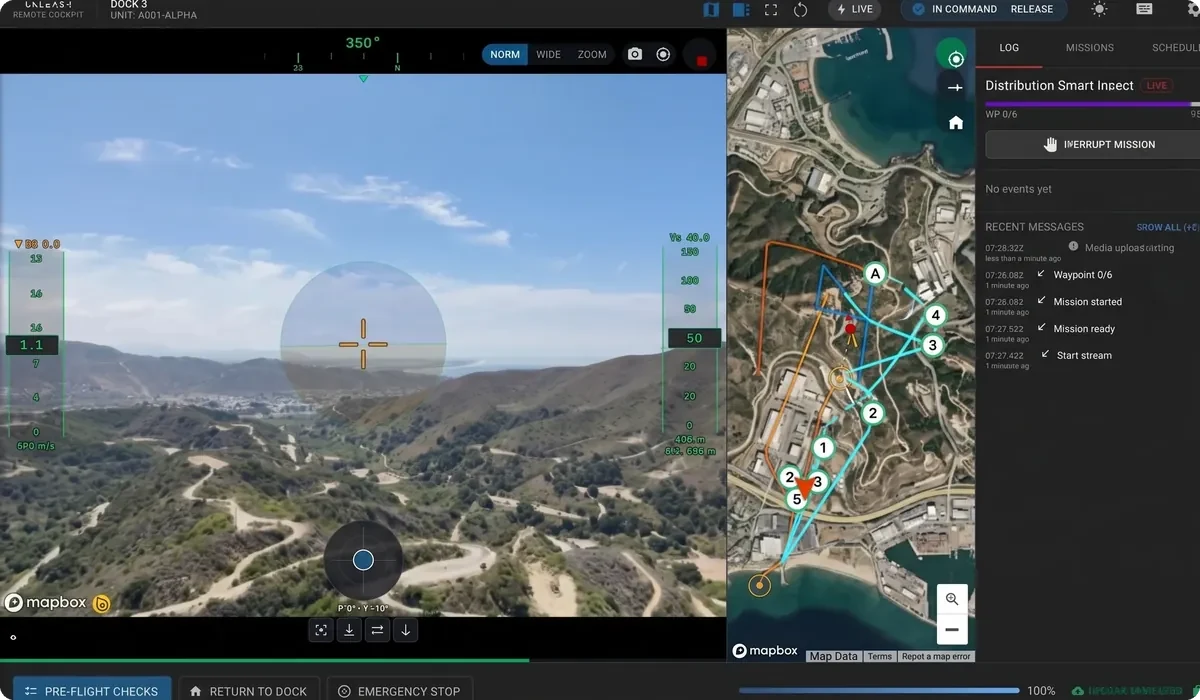
AutoFly is Orb’s ground control station software, running on your drone pilots’ controller. It flies the missions your team defines in Orb, syncs every capture back for review, and streams live as needed.

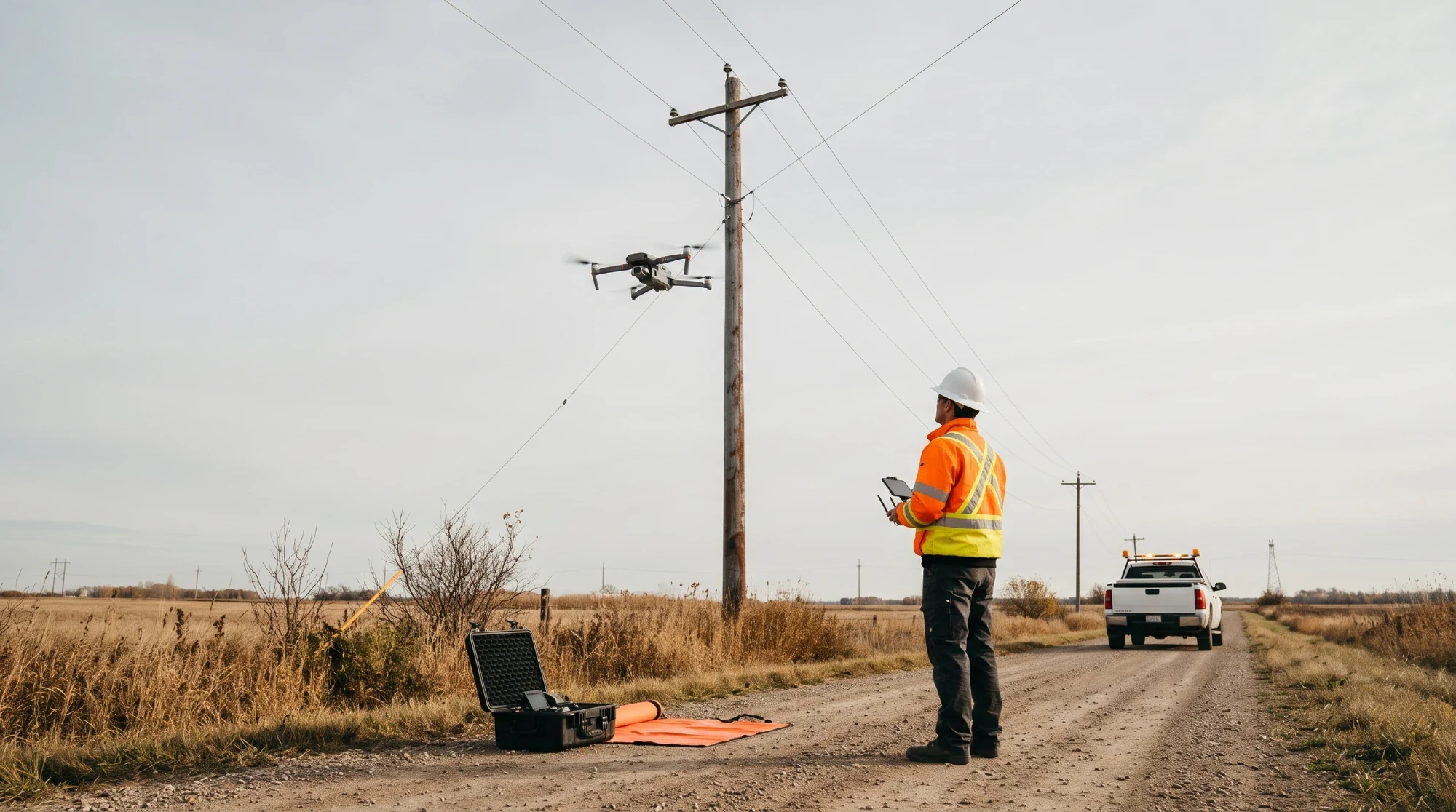
A pilot in high-vis and a hard hat flying a drone beside a power pole on a rural road, with the drone case open at his feet and a utility truck behind

AutoFly is Orb's mission control software.

Your team defines the automated missions in Orb and pushes them to the pilots who fly them in AutoFly. The media lands back in Orb, tagged to its asset and ready for analysis.

In the field

Built for the pilot, connected to Orb

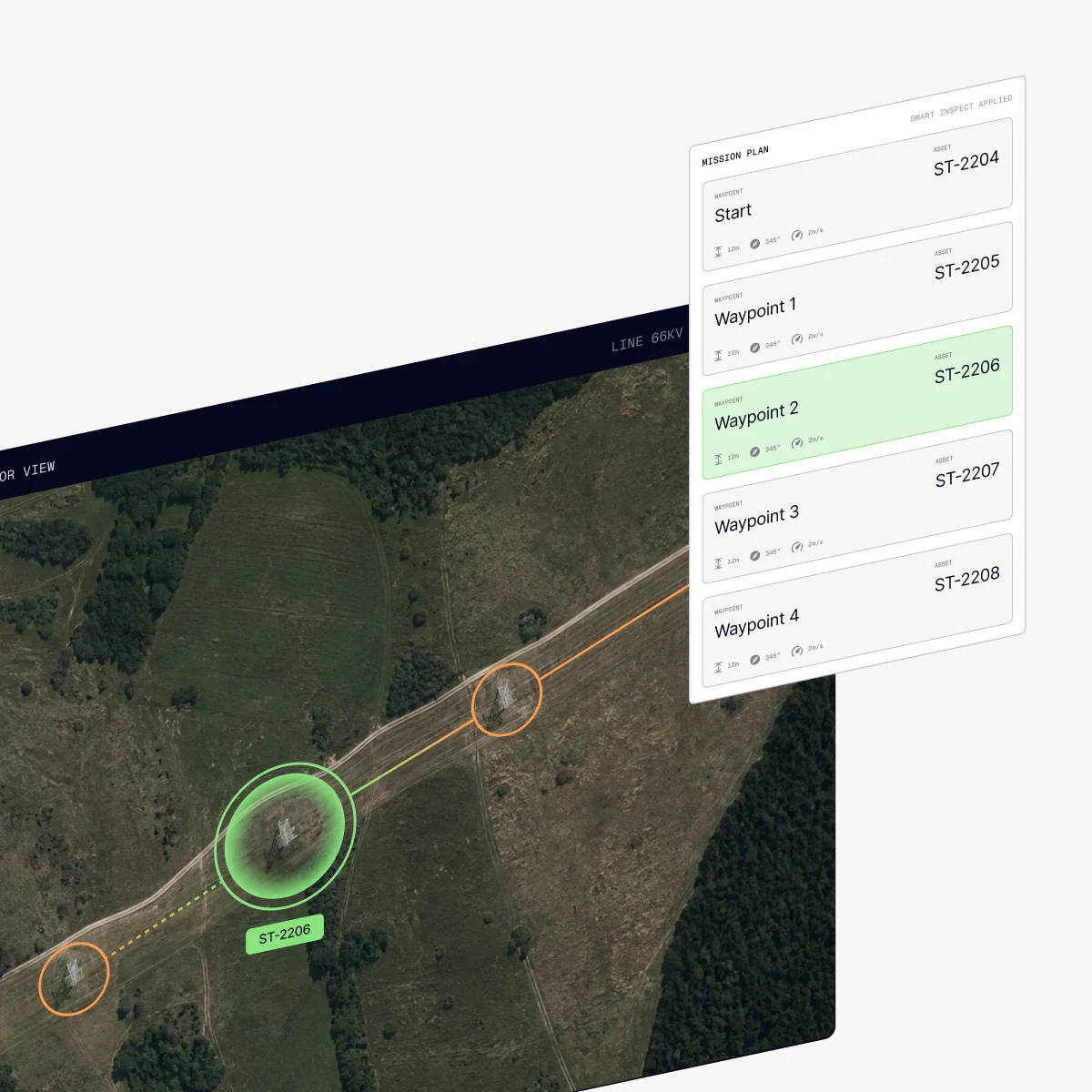
  1. Inspection tasks planned and assigned in Orb are pushed to the drone controller, where pilots view and execute automated waypoint and corridor missions along the flight paths assigned to them. Asset locations show as map layers, with color-coded task status flags.

    An AutoFly mission over a powerline corridor, with its waypoint list and the next structure marked
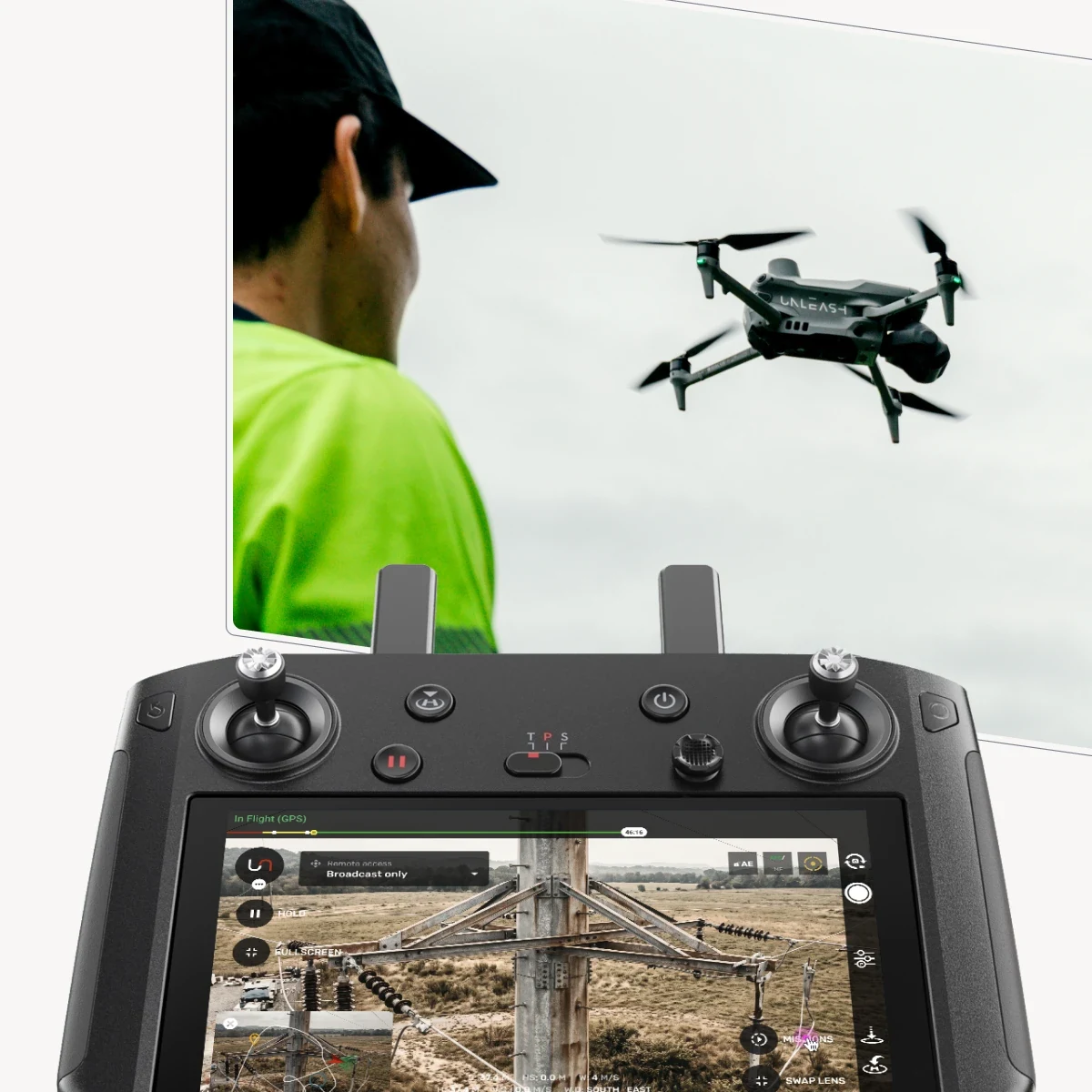
  2. Stream the flight to Orb at up to Full HD and 60 fps, with two-way audio between the pilot and the team watching. Share the full cockpit or the raw camera feed. Pilots can give a remote operator control of the camera and gimbal, or, where your approvals allow, of the drone itself.

    A pilot in high-vis flying a drone, with the live feed of a power pole on the AutoFly controller
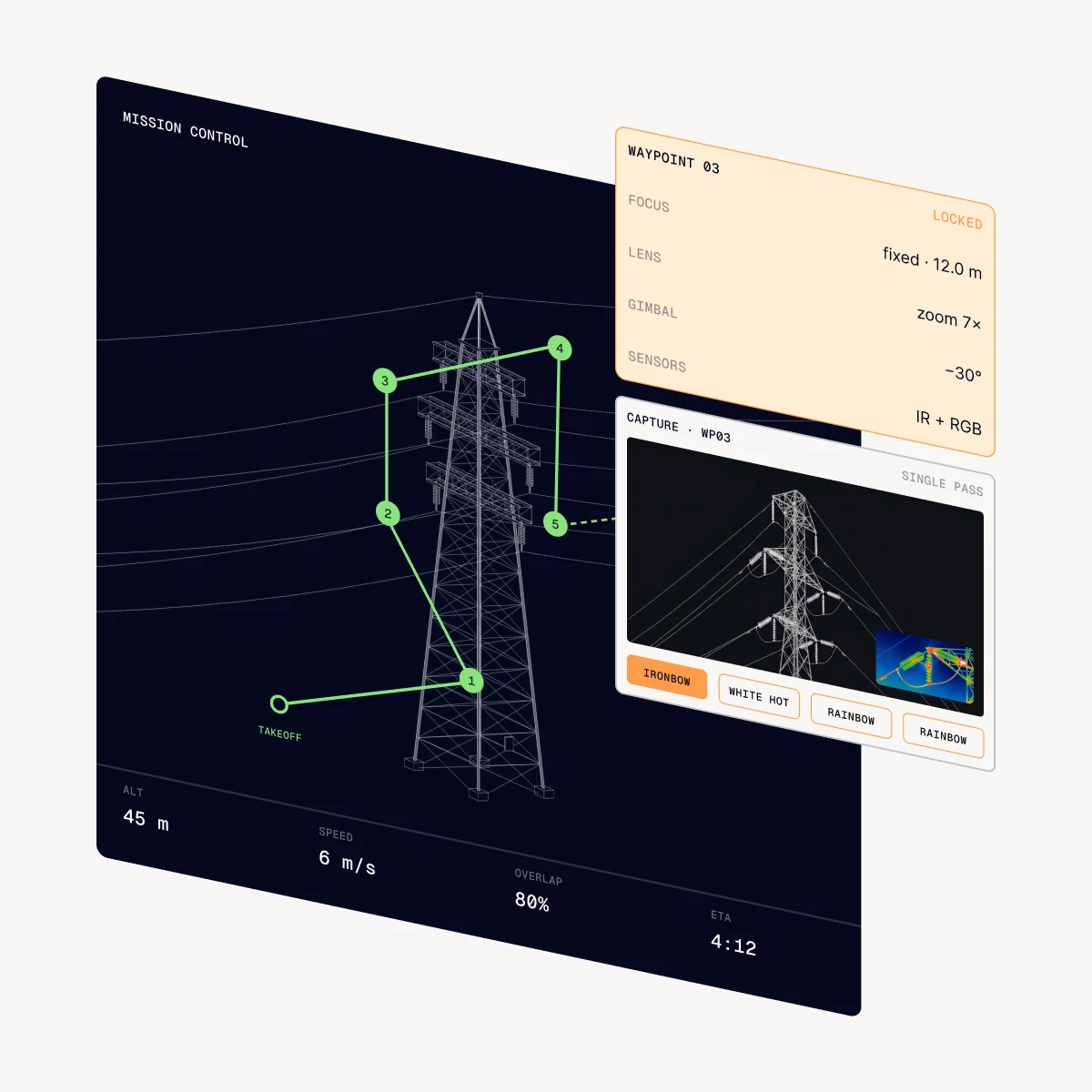
  3. Automated missions set the exact flight path and capture points, with focus and lens fixed per waypoint. Real-time kinematic (RTK) positioning holds the drone to centimeter precision, so the same asset is captured the same way each cycle. Thermal capture records IR and RGB in a single pass, with picture-in-picture, palettes and region metering.

    A transmission tower mapped into precise capture points, with the waypoint settings and thermal view
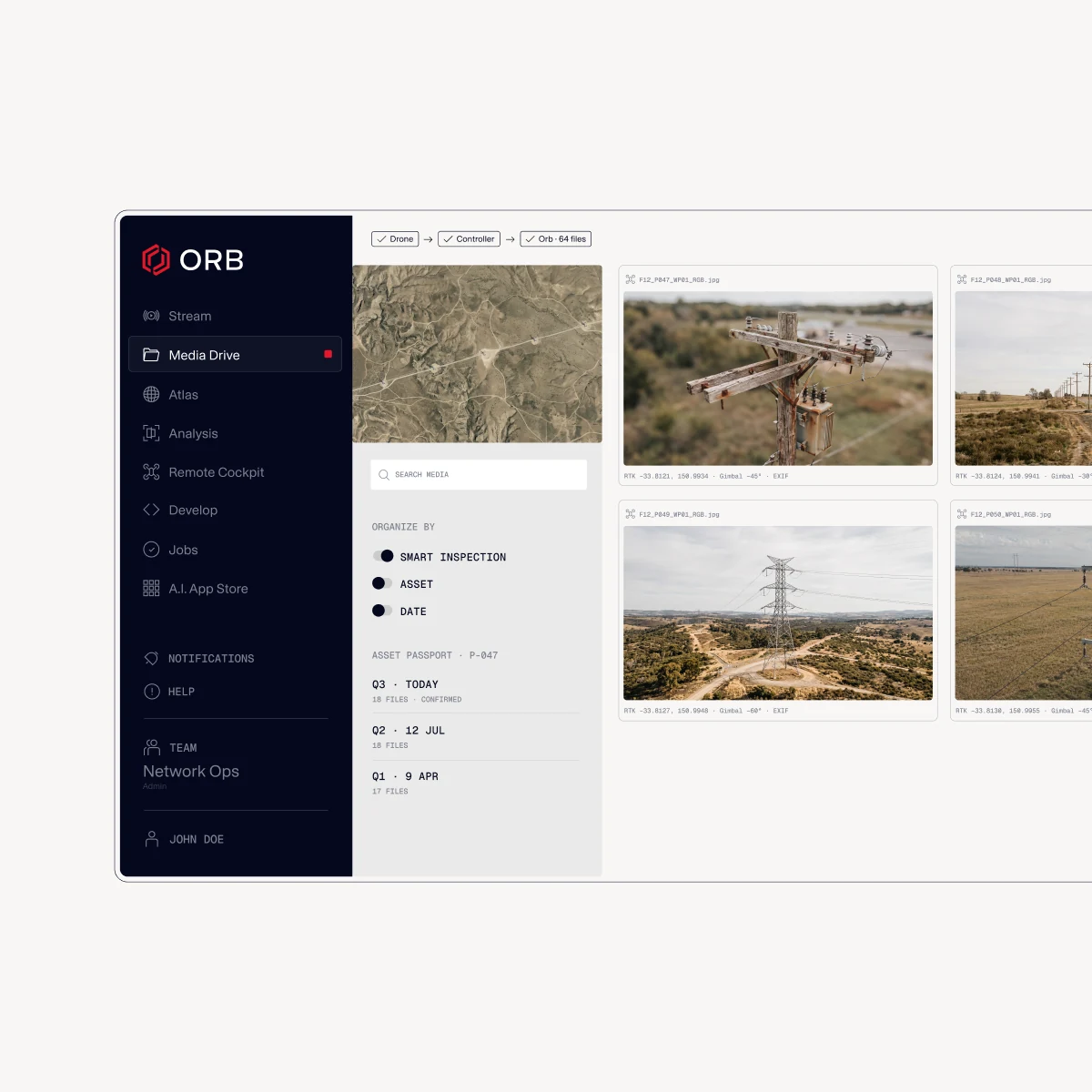
  4. Photos and video sync from drone to controller to Orb, organized by Smart Inspection or asset, with RTK position, gimbal angle and EXIF data kept intact. The media joins each asset's Asset Passport, alongside its earlier inspections.

    Inspection media synced into Orb, organized by asset with its capture details
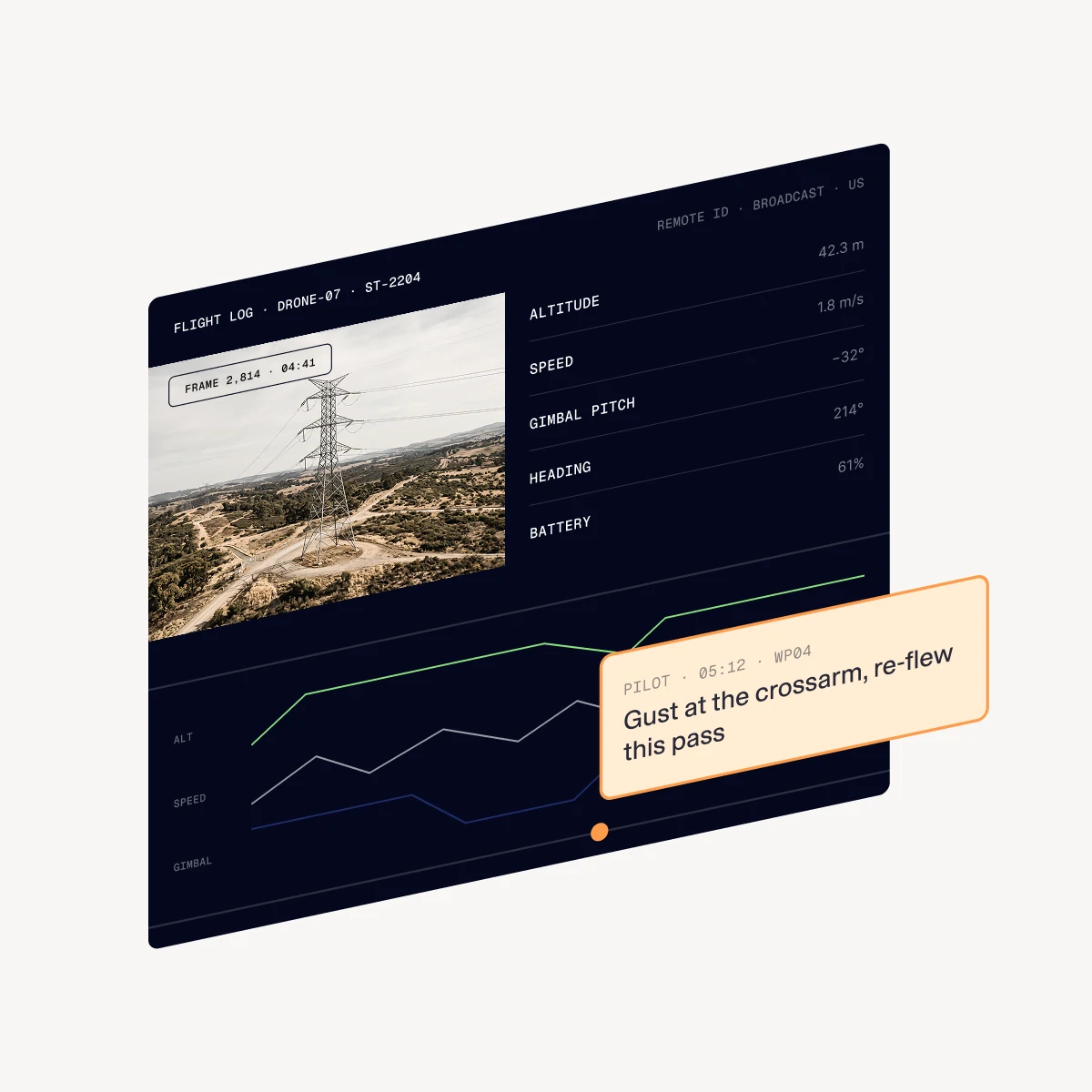
  5. AutoFly logs each flight frame by frame, with telemetry and camera angle through the flight. Pilots can attach a comment to a position in the log, so reviewers get that context along with the footage. AutoFly's logs and the drone's own logs both appear in Orb, and Remote ID can be set to the rules of the region you fly in.

    An AutoFly flight log with telemetry and a pilot's comment pinned to a point in the flight

Inside Orb

Where AutoFly fits in the Orb workflow

Orb runs the inspection program from asset registry to action. AutoFly is the capture stage: the part of Orb your pilots take into the field.

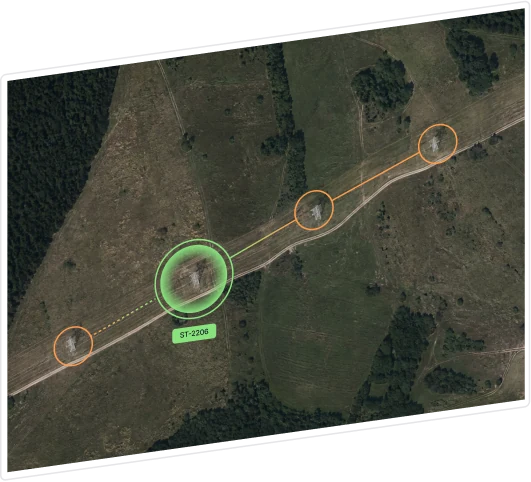
  1. Aerial view of a powerline corridor with transmission structure ST-2208 marked for inspection

    Step 01

    Plan

    Your team defines the assets, plans the inspection and assigns tasks to pilots in Orb.

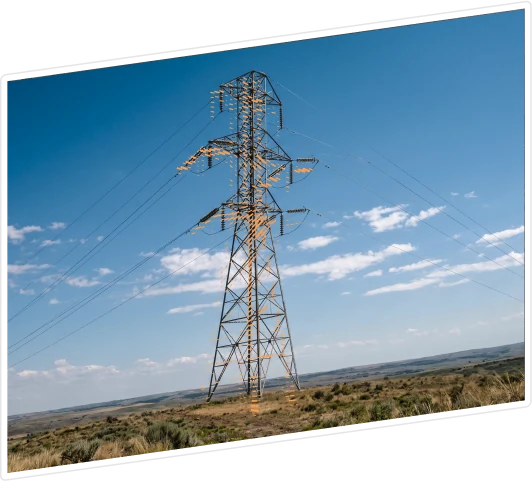
  2. A transmission tower against a blue sky, captured on an AutoFly mission

    Step 02

    Capture

    Pilots fly their assigned tasks in AutoFly, streaming live to the team while media syncs back to Orb, tagged to its asset.

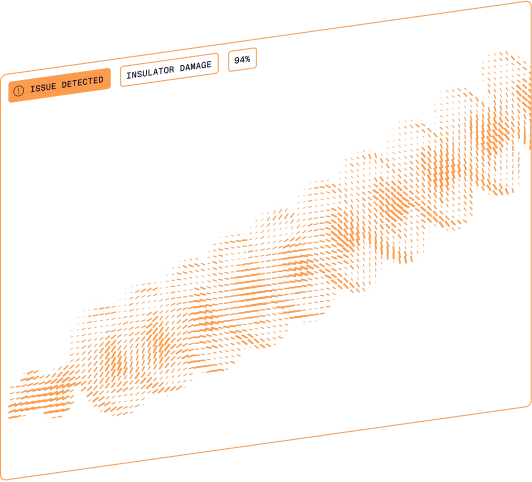
  3. Insulator damage detected on the transmission structure at 94% confidence

    Step 03

    Analyze

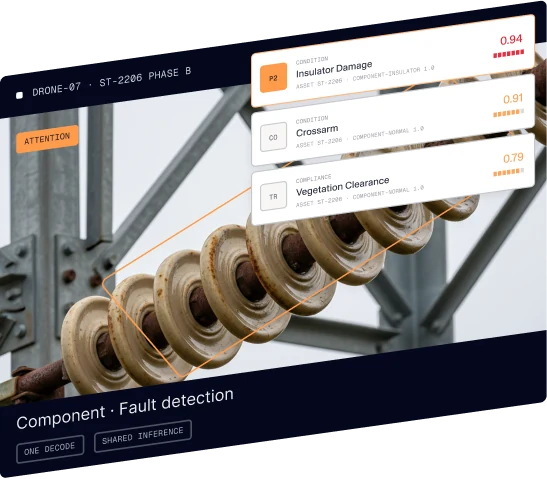
    Computer vision in Orb detects and grades faults across the captured media, classified by severity and asset class.

  4. Insulator damage, corrosion and other findings on a transmission tower, each graded with a confidence score

    Step 04

    Review

    Experts confirm and reclassify each finding in context, escalating what needs action.

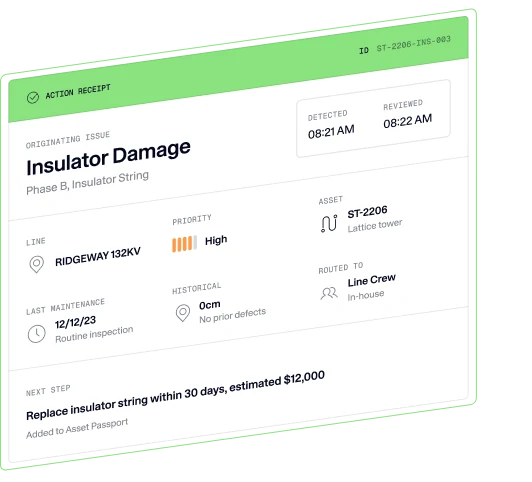
  5. Action receipt routing insulator damage on structure ST-2208 to the line crew, with the next step to replace the insulator string

    Step 05

    Act

    Findings route into your work management systems as work orders, so crews are dispatched against verified defects.

Emergency response

Live aerial video for the whole incident team

AutoFly isn't only for scheduled inspections. In an emergency it streams live aerial video from the drone to incident management teams, command centers and field crews, so the people making decisions see what the crew on the ground sees, as it happens.

  • Live thermal and RGB video

    Aerial thermal and RGB footage shows fire edges, hotspots and affected areas as they change.

  • A shared view in the browser

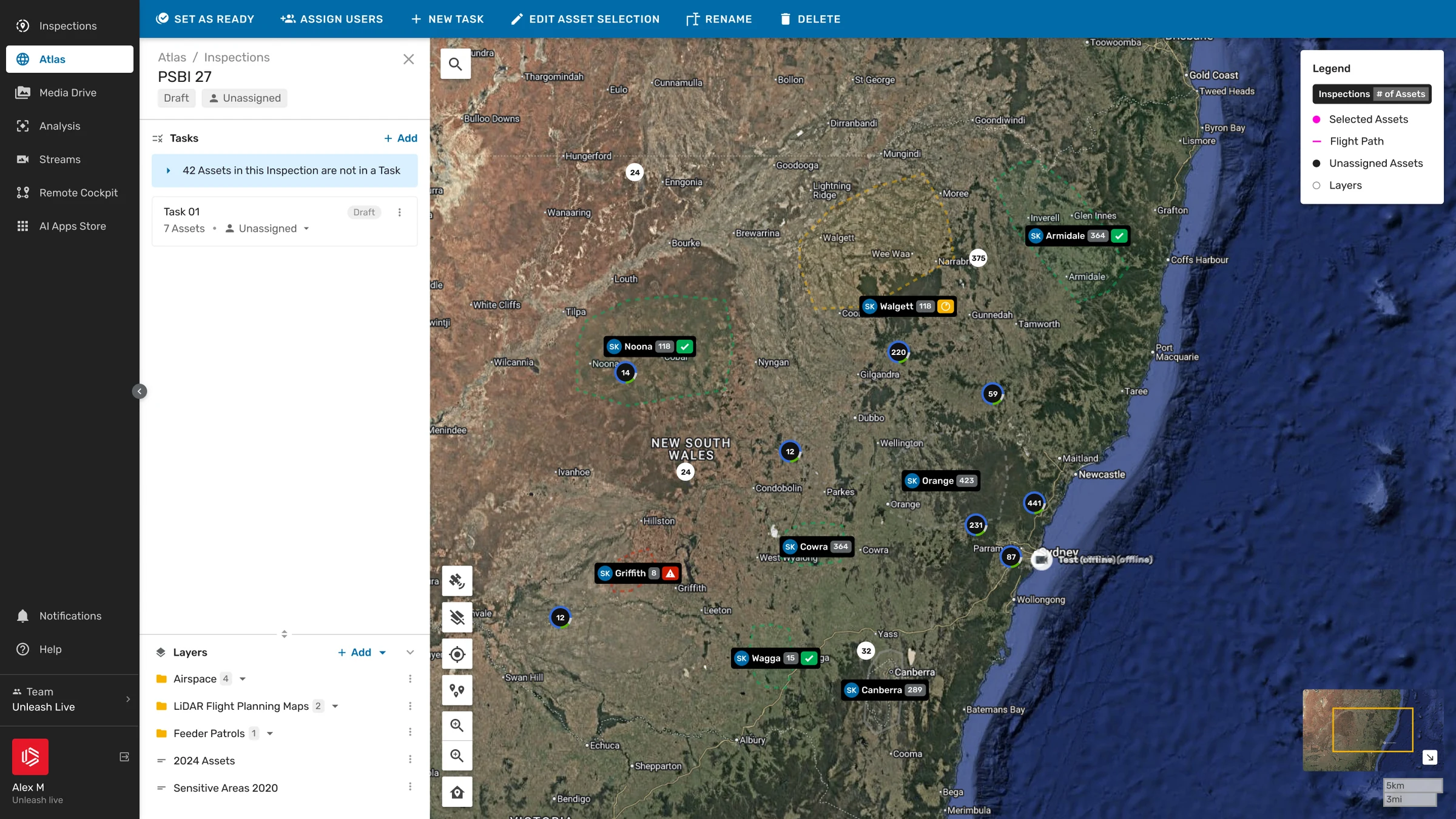
    Command and crews watch the stream in a browser, alongside aircraft and asset positions on a satellite map, with no extra hardware.

  • Two-way audio and remote control

    The command center and field crews talk over the stream, and a remote operator can take camera or drone control where your approvals allow.

  • Connected at remote incidents

    Stream over LTE or a satellite link such as Starlink, so incidents far from the network stay connected.

Prescribed burns with National Parks & Wildlife

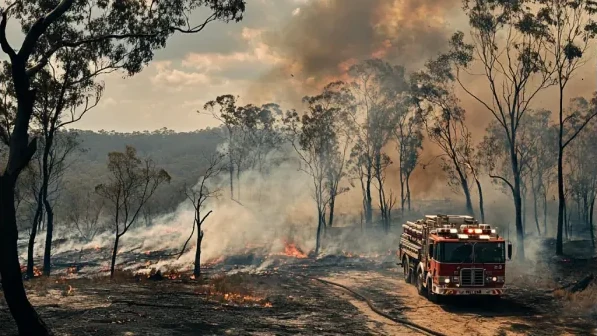
On-site crews and incident management teams used live aerial thermal and RGB footage from Unleash Live to understand burn areas and patterns, and to identify possible hotspots outside the set burn area.

  • Live thermal and RGB footage for crews and incident management

  • Hotspots identified outside the set burn area
Incident command with Firetech

Live aerial footage, aircraft and asset positions, and two-way audio between the command center and field crews, delivered through Unleash Live over Starlink, gave all parties a shared, real-time view of the incident.

  • Aircraft and asset positions alongside the live video

  • Two-way audio between command center and field crews

Get AutoFly

AutoFly is for existing Unleash Live customers. It installs as an Android app on your drone controller: download the latest release there and sign in with your Unleash Live account. The tasks assigned to you in Orb are then ready to fly, and media from each flight syncs back to Orb on its own.

Download AutoFly

What AutoFly runs on

Controllers
DJI RC Plus, DJI RC Pro Enterprise, and Android 8.0+ devices that support DJI Mobile SDK V5
Drones
Matrice 4E/4T, Matrice 4TD, Mavic 3 Enterprise, Mavic 3 Thermal, Mini 4 Pro, Matrice 30/30T, Matrice 400, Matrice 350 RTK and Matrice 300 RTK, on SDK V5-supported firmware
Connectivity
A stable upload speed of 3 Mbps or higher for live streaming
Languages
English and German
Account
An active Unleash Live account

Trusted by leading operators

Frequently Asked Questions

How does AutoFly relate to Orb?

AutoFly is Orb's mission control software. Your team plans inspections and assigns tasks in Orb, and pilots fly those tasks in AutoFly on their drone controller. Media and flight logs sync back to Orb, where computer vision analyzes the media and experts review the findings.

Which drones and controllers does AutoFly support?

AutoFly runs on the DJI RC Plus, the DJI RC Pro Enterprise and Android 8.0+ devices that support DJI Mobile SDK V5. Supported drones are the Matrice 4E/4T, Matrice 4TD, Mavic 3 Enterprise, Mavic 3 Thermal, Mini 4 Pro, Matrice 30/30T, Matrice 400, Matrice 350 RTK and Matrice 300 RTK, on SDK V5-supported firmware.

Can people outside the field watch a flight live?

Yes. AutoFly streams live to Orb at up to Full HD. Your team watches in the Remote Cockpit or on the Watch page, and you can share a secure Public Watch Page link with stakeholders. Two-way audio connects the pilot with the people watching.

Can AutoFly be used for emergency response?

Yes. AutoFly streams live aerial thermal and RGB video to incident management teams, command centers and field crews, who watch in a browser alongside aircraft and asset positions on a map. Two-way audio connects the command center with crews, and a remote operator can take camera or drone control where your approvals allow.

Can a remote operator control the drone?

Yes. AutoFly can hand camera control, or camera and drone control, to an operator in Orb. Remote camera control needs no specific approval. Full remote operations need EVLOS or BVLOS approval from your aviation regulator, such as the FAA or CASA.

What connectivity does live streaming need?

A stable upload speed of 3 Mbps or higher is recommended. Stream quality can be set from 360p up to Full HD, so a pilot on a weaker connection can still stream at a lower resolution.

How do I get AutoFly?

Open the AutoFly download page on your drone controller or Android device, accept the licence terms and download the latest release, then sign in with your Unleash Live account. An active Unleash Live account is required.

See AutoFly in action.

Walk through mission control, live streaming and media sync with our technical team.